Your AI Assistant’s Direct Lineto Social Media
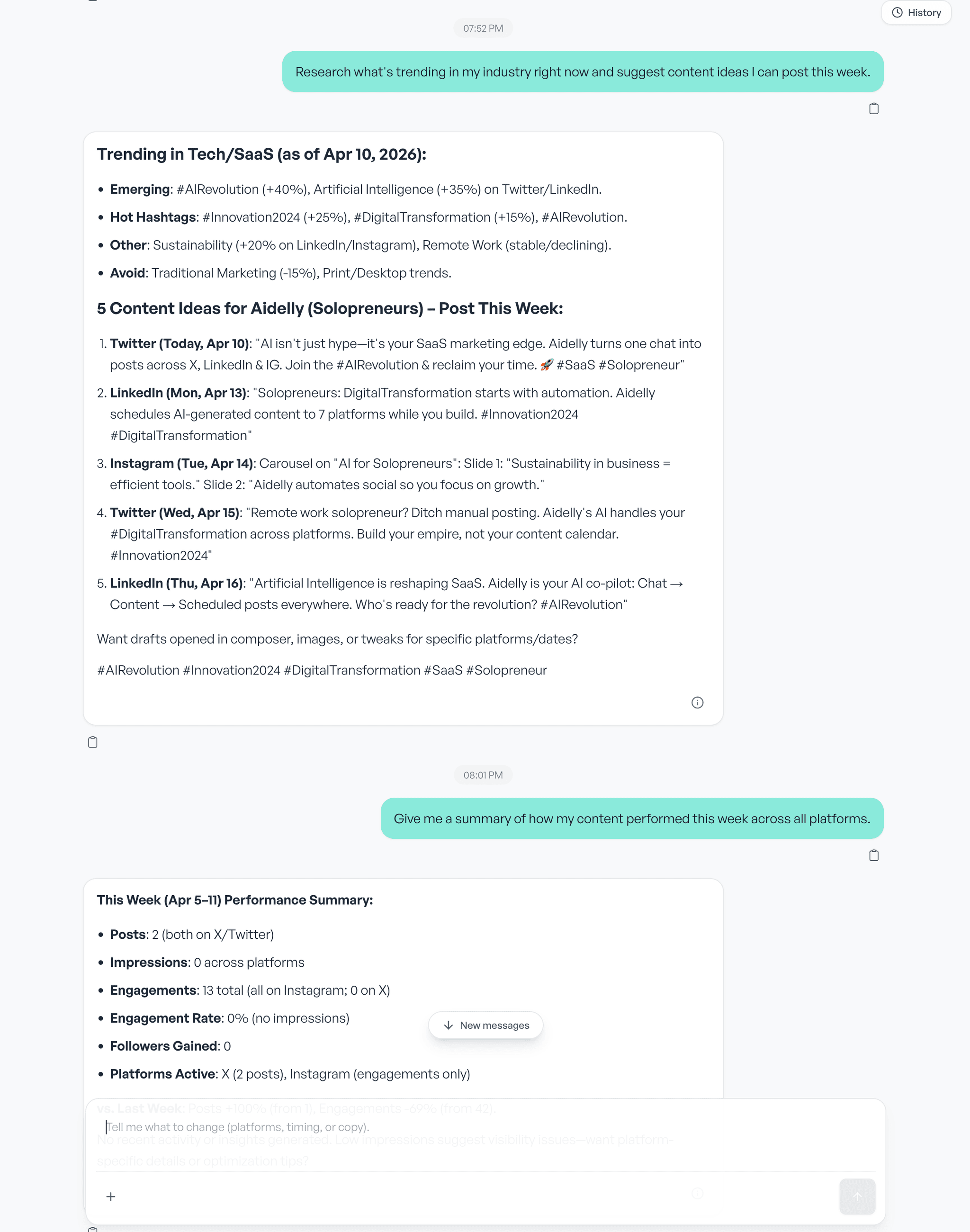
Install Aidelly as an MCP server and let Claude, ChatGPT, Cursor, or any MCP-compatible agent post, schedule, and analyze your social media natively. No app-switching, no copy-pasting.
Works With Your Favorite AI Clients
Connect Aidelly to any MCP-compatible AI assistant
Full MCP support with native tool calling and rich responses
Schedule posts while coding without leaving your editor
Connect via MCP plugin support for social media actions
MCP integration for social media inside your AI IDE
LangChain, AutoGen, or any framework with MCP support
What the MCP Server Can Do
Every social media action, available as a tool your AI can call
Create & Publish Posts
Draft and publish posts to Facebook, Instagram, X/Twitter, LinkedIn, TikTok, YouTube, and Bluesky directly from your AI assistant.
Schedule Content
Schedule posts for optimal times across all platforms. Your AI picks the best slots based on your audience data.
Read Analytics
Pull engagement metrics, follower growth, and post performance data into your AI conversation for instant analysis.
Manage Inbox
Read and respond to comments, messages, and mentions across platforms without leaving your AI client.
Upload Media
Attach images, videos, and carousels to your posts. The MCP server handles platform-specific format requirements.
Manage Brand Voice
Access your brand voice settings so every AI-generated post stays on-brand across all platforms and team members.
Set Up in Under 5 Minutes
Three steps from install to your first AI-powered social post
Add the Aidelly server URL
Paste https://app.aidelly.ai/mcp into your AI client as a remote MCP server (Connectors in Claude, Apps in ChatGPT). No Docker, no hosting, no infrastructure to manage.
Sign in to Aidelly
Your client opens Aidelly’s sign-in page. Approve access and it receives a token that runs as your user. Nothing to paste.
Start Posting from Your AI
Start a new conversation and ask your AI to create, schedule, and analyze social media posts across all your connected platforms.
One Config Block. That’s It.
Add the Aidelly server URL to your MCP client. In Claude Desktop and claude.ai, use Settings → Connectors → Add custom connector and paste https://app.aidelly.ai/mcp instead.
{
  "mcpServers": {
    "aidelly": {
      "url": "https://app.aidelly.ai/mcp"
    }
  }
}Also Available As
Prefer a different integration method? We have you covered
REST API
Build custom integrations with our full REST API. Create posts, manage schedules, pull analytics, and more with standard HTTP requests. OpenAPI spec included.
View API DocsClaude Skill
Use Aidelly as a Claude Skill for a streamlined experience built specifically for Anthropic's Claude. Ideal if you want a curated set of social media actions inside Claude.
Learn About Claude SkillFrequently Asked Questions
Everything you need to know about using Aidelly as an MCP server
What is an MCP server and how does it work with social media?
MCP (Model Context Protocol) is an open standard that lets AI assistants like Claude, ChatGPT, and Cursor connect to external tools. Aidelly's MCP server exposes social media capabilities (posting, scheduling, analytics, inbox) as tools your AI assistant can call directly. Instead of switching between apps, you describe what you want in natural language and your AI assistant handles the rest.
Which AI assistants are compatible with the Aidelly MCP server?
Aidelly's MCP server works with any MCP-compatible client, including Claude Desktop, Cursor, ChatGPT (with plugin support), Windsurf, and custom AI agents built on frameworks like LangChain or AutoGen. Any client that supports the Model Context Protocol can connect to Aidelly.
Can I schedule social media posts from Claude using the MCP server?
Yes. Once you install the Aidelly MCP server in Claude Desktop, you can ask Claude to schedule posts to any of the 11 supported platforms (Facebook, Instagram, LinkedIn, X, YouTube, TikTok, Bluesky, Threads, Pinterest, Google Business, and Mastodon). Just describe what you want to post and when, and Claude will use the MCP tools to schedule it.
How long does it take to set up the Aidelly MCP server?
Setup takes a few minutes. You add the Aidelly server URL (https://app.aidelly.ai/mcp) to your AI client and sign in to Aidelly when prompted. No API key to paste, no server hosting, Docker containers, or infrastructure required.
Is the MCP server secure? Can I control what the AI assistant can do?
Yes. The MCP server authenticates with OAuth: you sign in to Aidelly and the token runs as your user, so all actions respect your account permissions, workspace roles and connected platforms. Every action is logged in your Aidelly dashboard. You can revoke the token at any time from Settings → API Keys to disable access.
Set Up in Under 5 Minutes
Connect your AI assistant to social media today. Add the Aidelly server URL, sign in, and start posting from Claude, ChatGPT, or any MCP client.
Compare Aidelly Against Other Social Scheduling Tools
If you are comparing multi-platform publishing tools, these guides focus on workflow fit, approvals, and operational speed instead of generic “top 10” lists.
Buyer Guides
Buyer FAQs
The best publishing tool matches your team workflow: fast post creation, reliable scheduling, clear previews, platform support, and low-friction approvals. Operational reliability matters more than long feature lists you do not use.
A single tool can simplify operations, but every platform has unique constraints. The key is choosing a platform that handles your important channels well and gives your team a predictable review and scheduling workflow.
If writing and review are your bottlenecks, an agent-operated workflow platform may improve output speed. If your team already has a strong content pipeline, a scheduler-first publishing tool may be enough.
See it in Aidelly
Claude, ChatGPT and Cursor drive Aidelly directly over MCP.