Developers
How to Wire an AI Agent Into Your CRM So Social Posts Trigger From Real Customer Data
Most social media automation runs on a fixed schedule. You pick a time, write a post, and hope it lands. But what if your CRM could fire the trigger instead? A closed deal, a contract renewal, a new paying customer — these are the moments your audience actually cares about. Wiring an AI agent into your CRM means your social content reacts to real business events, not a content calendar someone built three weeks ago. This guide walks through the full setup: one trigger, one post type, a privacy-safe data bridge, agent rules that keep your brand protected, an approval gate that catches mistakes before they go live, and analytics that tell you what actually worked. No full dev team required. Just an API key, a webhook, and a clear plan.

By Wilzer Jean-Baptiste
Published 9 min read
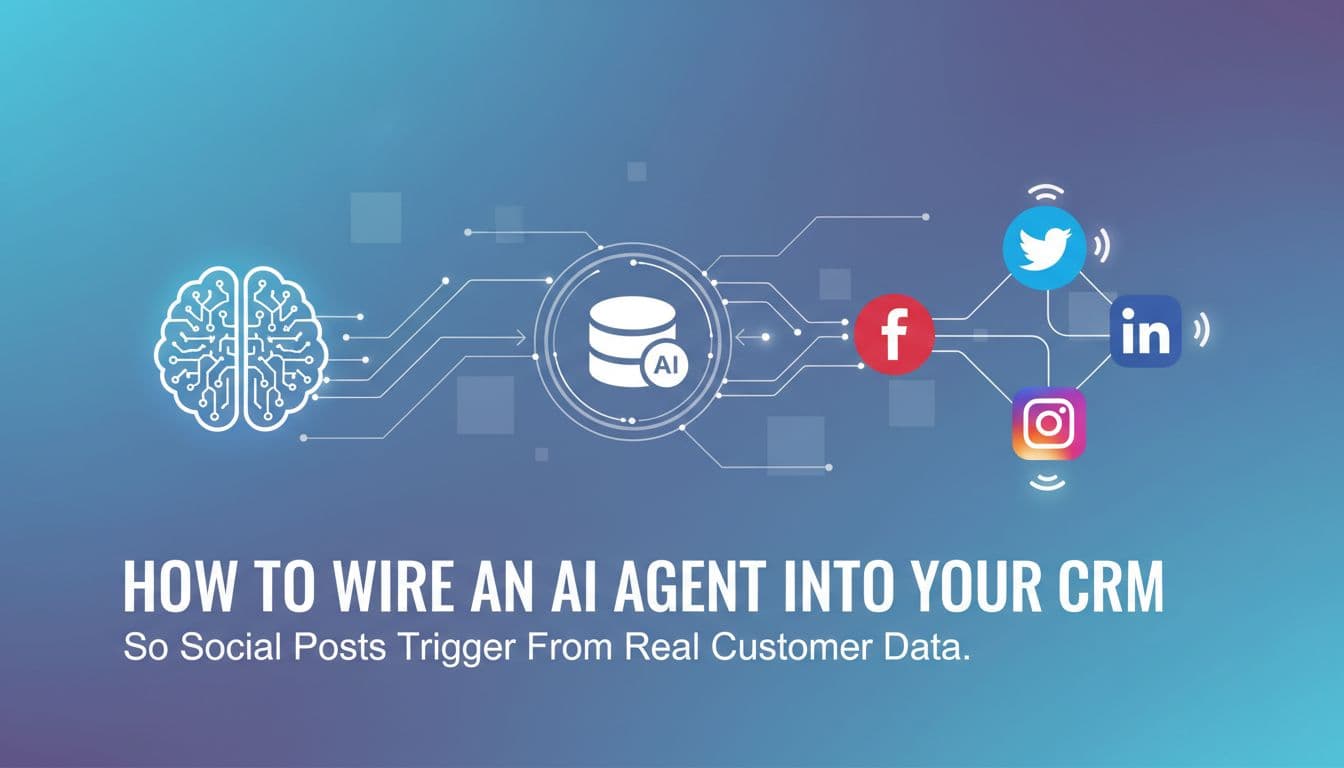
Your CRM already knows when something important happens. A deal closes. A customer renews their contract. A new user activates a paid plan. These are the moments that actually matter to your business, and right now, most of them pass without a single social post to mark them. Meanwhile, you're scheduling generic content three weeks in advance and hoping it connects with someone. There's a better way to do this. You can wire an AI agent directly into your CRM so that real customer events trigger real social content, drafted by an agent, reviewed by a human, and published at the right time. This guide shows you exactly how to build that system, from the first webhook to the first approved post, with the privacy rules and failure alerts that most tutorials skip entirely.
Start Small: One Trigger, One Post Type
The biggest mistake people make when they try to connect a CRM to social media is going too wide too fast. They want every deal stage, every contact tag, every renewal date to fire a post. Within a week, the workflow breaks, a customer's name shows up in a post it shouldn't, and someone has to manually clean up the mess.
Start with one trigger. One post type. Get that working cleanly before you add anything else.
Pick the Trigger That Means the Most
The best starting trigger is a closed deal. In HubSpot, that's a deal moving to "Closed Won." In Pipedrive, it's a deal reaching the "Won" stage. In Salesforce, it's an Opportunity with a stage of "Closed Won." In Zoho, it's a deal marked as "Won." Every major CRM has this event, and it fires reliably. You don't have to guess when it happens. The CRM tells you.
Map that trigger to one post type: a customer thank-you post. Something like "We just helped a bakery owner in Austin launch their online ordering system. Huge milestone for their team." No names. No deal values. No identifying details. Just a warm, specific celebration that tells your audience what kind of work you do and who you do it for.
This scope is small on purpose. When something breaks — and something always breaks in a new workflow — you want to catch it before it reaches your audience. A single trigger and a single post type means you can test every edge case in a week. You know exactly what fired, what the agent drafted, and what went live. That's the foundation everything else builds on. Once this one trigger runs cleanly for 30 days, you can add a second one. Contract renewals are a natural next step. New product activations after that. But don't rush it. Each layer you add should sit on a stable base.
Write the Post Template Before You Build Anything
Before you touch an API or open a webhook dashboard, write five example posts by hand. Pretend a deal just closed. What would you want to say? What details make the post feel real without giving anything away? What tone matches your brand?
These five examples become your agent's training material. They show the AI what good looks like. They also help you spot privacy problems early. If you find yourself wanting to write "Congrats to Sarah at Bloom Bakery on signing their $12,000 contract," that's a red flag. The agent needs rules that prevent exactly that. Writing the examples first forces you to think through the edge cases before the workflow is live and making decisions on its own. Save these examples somewhere you can reference them when you set up the agent's rules in the next step.
Build the Bridge: API, Webhook, and Privacy Rules
Aidelly doesn't have a native CRM connector built into the dashboard. That's not a limitation — it's the right design for this kind of workflow. A native connector would lock you into a fixed field mapping. The REST API and webhook approach gives you full control over what data moves and when.
Here's how the bridge works in practice.
Connect Through the REST API or a Webhook Receiver
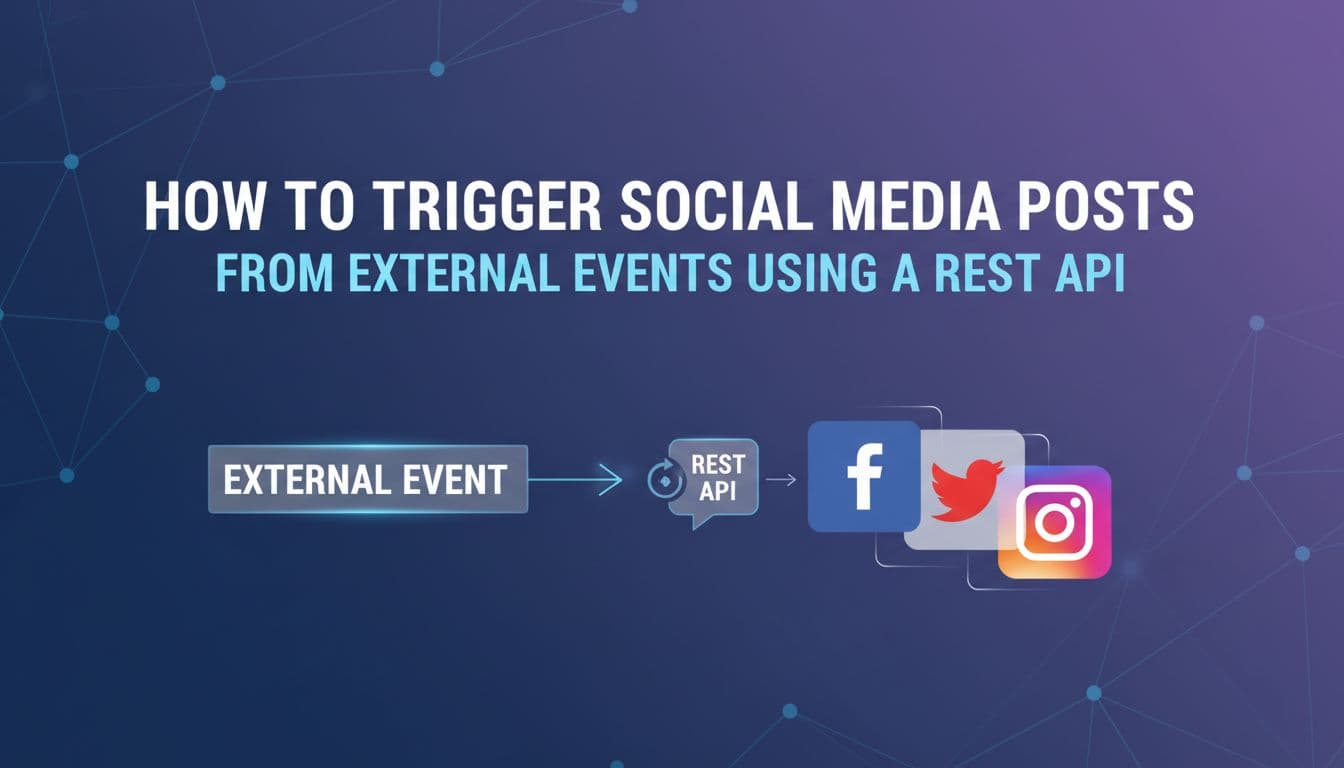
Your CRM fires a webhook when the trigger event happens. A deal closes, and HubSpot sends a POST request to a URL you control. That URL is either a webhook receiver you build with a tool like Make, Zapier, or n8n, or it's a lightweight server endpoint you write yourself if you're comfortable with code.
The receiver's job is to catch the payload, strip it down to only the fields the post needs, and forward those fields to Aidelly's REST API. The payload that reaches Aidelly should carry things like the customer's industry, their region, the product they bought, and a deal category tag. It should not carry the customer's name, email, company name, deal value, or any other personally identifiable information.
This is where most people get sloppy. They forward the entire CRM record because it's easier than mapping individual fields. Don't do that. Build the field map explicitly. In Make or Zapier, use a formatter step to pull only the fields you need. In a custom receiver, write a sanitization function that whitelists the allowed fields and drops everything else. The payload that hits Aidelly should look something like this: { "industry": "food and beverage", "region": "Texas", "product": "online ordering integration", "event_type": "deal_closed_won", "crm_record_id": "hs_deal_00482" }. Clean, minimal, and safe.
Before any record enters the workflow at all, check the consent flags in your CRM. If you're in a region covered by GDPR, CCPA, or any other privacy regulation, you need to confirm that the customer has consented to their data being used in marketing. Most CRMs let you store a consent flag on the contact or company record. Build a filter step in your webhook receiver that checks this flag before the payload moves forward. If the flag is missing or set to false, the workflow stops. No post gets drafted. No data moves. This check runs every time, not just during setup.
Set the Agent's Rules Before It Drafts Anything
An AI agent without rules is just an autocomplete engine with access to your social accounts. The rules are what make it useful and safe. Write them before the agent touches a single draft.
In Aidelly's Brand Voice settings, store three things: your brand voice description, your banned claims list, and your privacy rules for this workflow. The brand voice description should be specific. Don't write "friendly and professional." Write something like: "We sound like a knowledgeable friend who's been in this industry for ten years. We celebrate wins without bragging. We talk about the work, not the price. We use plain language and short sentences."
The banned claims list should include anything that could get you in trouble or embarrass a customer. No deal values. No company names unless you have explicit written permission to use them publicly. No claims about ROI or results unless you have verified numbers. No superlatives like "best" or "fastest" unless you can prove them.
The privacy rules for this workflow are specific to the CRM integration. Tell the agent to use segment labels instead of identifiers. "A bakery owner in Austin" instead of a name. "A mid-size logistics company in the Midwest" instead of a company name. "A professional services firm that just expanded to three new markets" instead of a deal description. These labels keep the post feeling specific and real without exposing any customer data. The agent should never reference a number that came from the CRM payload — no deal sizes, no contract lengths, no revenue figures. If the agent can't write a good post without those details, the post shouldn't go out. Store all of these rules in one place so the agent reads them every time it drafts, not just the first time you set it up.
Teams that want to go further can connect an AI assistant like Claude or ChatGPT to Aidelly through the MCP Server, which lets the assistant manage the drafting and scheduling workflow through natural language. But for most small businesses and agencies, the REST API approach with stored Brand Voice rules is enough to get a clean, safe workflow running this week.
Approve, Publish, and Measure What Actually Works
The workflow doesn't end when the agent drafts the post. That draft needs a human review before it goes anywhere near your audience. And after it publishes, you need to track whether it actually moved the needle.
Put an Approval Gate Between the Trigger and the Publish Step
For the first few weeks of any new triggered workflow, every single draft should go through a human review before it publishes. This is not optional. The agent will make mistakes. It might use a phrasing that sounds off-brand. It might reference a detail from the payload that should have been filtered out. It might write a post that's compliant but just feels wrong for the moment.
Aidelly's approval workflow lets you set a review gate so that triggered posts land in a queue for a manager to check before anything goes live. Set this up before you connect the CRM trigger. The flow should be: CRM fires trigger, webhook receiver sanitizes the payload, Aidelly's API creates a draft, the draft enters the approval queue, a manager reviews and approves or edits, then the post schedules or publishes.
During review, the manager should check four things. Does the post match the brand voice? Does it contain any customer-identifying information? Does it make any claims the banned list prohibits? Does it fit the moment — is this the right type of post for this type of event? If the answer to all four is yes, approve it. If not, edit it and note what the agent got wrong. Those notes become new rules you add to the Brand Voice settings.
Move a post type to auto-publish only after it passes review at least ten times in a row without edits. Ten is not arbitrary. It means the agent has seen enough variation in the trigger data to handle edge cases. A deal that closes on a Friday afternoon is different from one that closes the day after a major industry event. Ten clean passes means the agent handles that variation well. Before that threshold, keep the human in the loop. The approval gate is not a sign that the AI isn't working. It's the safety net that makes the whole system trustworthy.
Tag Every Triggered Post and Track What It Does
When a post goes live, tag it with the CRM record ID and the event type. In Aidelly's content calendar, you can add tags to every post. Use a consistent format like crm:deal_closed_won and record:hs_deal_00482. These tags let you filter your analytics later so you can compare triggered posts against your regularly scheduled content on the same channel.
The comparison you're looking for is engagement rate and, if you can track it, pipeline influence. Do posts that fire from a closed deal get more comments than your standard educational content? Do they drive more profile visits or link clicks? Do deals close faster in the weeks when triggered posts are running? You won't have answers in the first month. But after 60 to 90 days, the data starts to show patterns.
Use Aidelly's cross-platform analytics to pull engagement data for your tagged posts and compare them against the baseline. If triggered posts consistently outperform scheduled posts on LinkedIn but underperform on Instagram, that tells you where to focus the workflow. If posts that go out within two hours of the deal closing get more engagement than posts that go out the next morning, that tells you to adjust the scheduling logic in your webhook receiver. Use the data to pick posting times instead of guessing. The analytics give you a real answer.
One more thing to track: failures. Build an alert into your webhook receiver that fires when a payload is rejected, when a consent flag blocks a record, or when the Aidelly API returns an error. Send that alert to a Slack channel or an email inbox someone checks daily. Failures in an automated workflow are silent by default. You won't know the workflow broke until you notice that no posts have gone out in three days. The alert turns a silent failure into a visible one you can fix fast.
The setup described here — one trigger, a sanitized payload, stored brand rules, an approval gate, and tagged analytics — is not a complex engineering project. It's a disciplined process that most small businesses and agencies can run with a few hours of setup and a week of testing. The payoff is social content that reacts to real business events instead of a content calendar that runs on autopilot regardless of what's actually happening in your pipeline. When your posts are tied to real moments, they feel more authentic, and your audience can tell the difference. The right tools make this manageable without a full dev team: a CRM that fires webhooks, a lightweight receiver to sanitize the data, and a scheduler built for agentic workflows that can accept API-driven drafts, hold them for review, and track what they do after they publish. That's the stack. Start with one closed deal and one thank-you post, and build from there.
If you want a low-lift way to apply these ideas, Aidelly helps you keep your social content consistent without extra busywork.Wiring your CRM to social media can expose customer data if you go too wide, too fast. Start with one trigger and one post type, and let the approval gate catch mistakes before your audience sees them. When you're ready for agents to handle drafting, scheduling, and performance tracking, check out agentic workflows or visit aidelly.ai to see how it fits your team.
Compare social scheduling tools
Evaluating software for your content workflow? Use our buyer guides and comparisons to compare scheduling, approvals, analytics, and AI workflow fit.